ClickReducer

Free Windows tool for sending configured key presses to your own game windows.

Extract the zip, run `ClickReducer.exe`, then follow the setup window. Use it only where your server rules allow this kind of input broadcasting.

What it does

  • Assigns detected game windows as Box 1 through Box 6.
  • Accepts broadcast triggers only from Box 1.
  • Supports profiles for different group sizes.
  • Lets one trigger send default or per-box outputs.
  • Includes a small draggable status overlay.
  • Includes text helpers for messages and commands.

What it does not do

  • Does not inject into the game client.
  • Does not read or write game memory.
  • Does not automate decisions, combat, pathing, or targeting.
  • Does not send telemetry or require an account.
  • Does not replace checking your server rules.

Setup

Start with separate game windows

ClickReducer does not launch the game for you. Open each character as its own normal taskbar window, then arrange the application icons from left to right on your start bar with the main character first.

1

Open one window per account

Each character should have its own normal Windows taskbar button.

2

Arrange left to right

Put Box 1, your main character, on the left. ClickReducer assigns boxes in that order.

3

Run setup

Choose your box count, click Assign Left-to-Right, optionally create the starter rule, then finish.

Six game taskbar buttons arranged left to right

Shortcuts

Use separate shortcuts if your launcher nests clients

If one launcher keeps every client inside one wrapper or container window, ClickReducer may not be able to see the individual windows. The simple fix is one shortcut per account.

  1. Copy your normal game shortcut once per account.
  2. Rename each shortcut for that character or box.
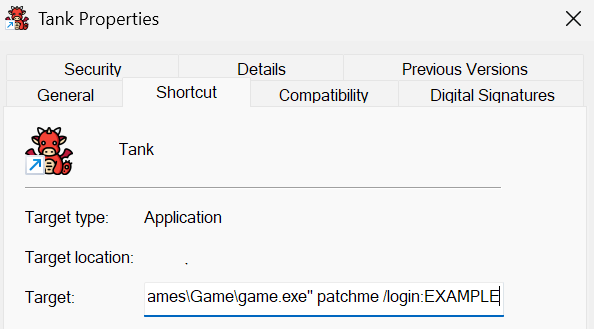
  3. Open shortcut properties and edit the Target field.
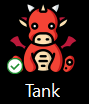
Example desktop shortcut named Tank
"C:\Games\Game\game.exe" patchme /login:EXAMPLE

Replace `EXAMPLE` with the account name for that box. Keep the quotes around the executable path.

Example shortcut target field

Using the app

Rules and profiles

Rules

A rule means: when this key is pressed on Box 1, send this output to the selected boxes. Use the output map when one box should receive a different key.

Profiles

A profile is a saved set of rules and box names. Use separate profiles for different group sizes instead of editing the same rules every time.

During a broadcast

Broadcasts only start from Box 1. While a broadcast is running, keyboard input and mouse button input are briefly guarded so extra movement clicks do not leak into boxes.

Developer project

DungeonSlice

We are building an MMORPG and planning a prototype test in Q1 2027. Join the Discord to follow progress, test announcements, and development updates.

ClickReducer main window at larger size